
MyTechDailyNews Software Guide: Fixing Universal Print Failures After KB5083769 or Windows 11
This guide from MyTechDailyNews Software focuses on the practical Microsoft warning: printers deployed through the Universal Print service can fail to print after the original Windows 10 installation is patched with KB5083769 on April 14, 2026, or after the device is upgraded to Windows 11. The useful response depends on scale: one user may delete and re-add the queue, while administrators should treat detection and conversion as an IT workflow.
Trigger Conditions for Universal Print Failures
Microsoft describes a narrow setup behind the issue: the printer must be deployed through the Universal Print service, and it must have been installed initially on Windows 10. If that machine later receives KB5083769, or if it moves to Windows 11, printing may break. The risk is not limited to the first Windows 11 release, because upgrading to a later Windows 11 version may also trigger the failure.
Symptoms Users May Notice First
- The print dialog reports a printer configuration problem and shows error code 0x80004005.
- The Print button turns grey and cannot be clicked.
- Printing a test page from printer properties produces error code 0x000003e3.
Microsoft adds that affected queues are registered with system-wide installation scope.
Key Data Points
- Named update: KB5083769.
- Update date: April 14, 2026.
- Reported duration: six months.
- Visible failure codes: 0x80004005 and 0x000003e3.
Single-Device Repair: Remove and Re-Add the Printer
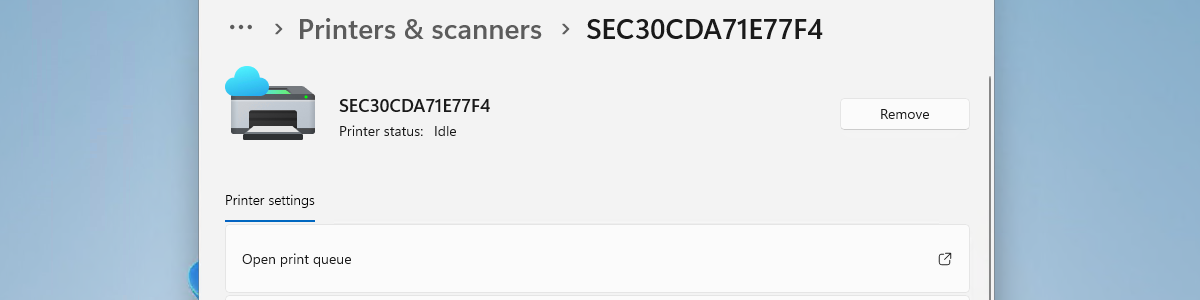
For one affected device, the user path is in Windows Settings: open Bluetooth and devices, go to Printers and scanners, remove the affected printer, then add it again. After reinstallation, the queue changes to a current-user-only installation. That scope change matters when a computer is shared by multiple people or runs in a virtual desktop environment, because an administrator needs to evaluate how users will access the printer afterward.
Compare: Local Fix vs Enterprise Batch Handling
| Scenario | Who acts | Recommended approach | Important caution |
|---|---|---|---|
| One affected Windows 10 or Windows 11 PC | End user | Delete the affected Universal Print queue and re-add the printer. | The queue becomes available only to the current user, so shared PCs and virtual desktops need admin review. |
| Many affected queues | IT administrator | Use Microsoft’s PowerShell script to detect and convert affected print queues, or deploy with Microsoft Intune and similar management tools. | Validate the change on a test device before wider rollout. |
| Manual batch work | IT administrator | Use PsExec and run the operation with SYSTEM privileges. | Do not treat this as a standard end-user repair step. |
FAQ: Universal Print, KB5083769, and Windows 11 Upgrade Risk
Does every Windows 10 printer fail after KB5083769?
No. The issue described by Microsoft applies to printers deployed through the Universal Print service that were originally installed on Windows 10.
Can upgrading to Windows 11 cause the same printing failure?
Yes. Microsoft identifies Windows 11 upgrades as a trigger, and a later Windows 11 release may also cause the problem.
What is the simplest user-side action?
Remove the affected printer from Settings and re-add it. The reinstalled queue is scoped to the current user.
What should administrators do before touching many devices?
Start with a test device. Use the Microsoft PowerShell script for detection and conversion, and deploy through Microsoft Intune or managed tooling when needed. For manual batch operations, use PsExec with SYSTEM access.
Action Advice for Users and IT Teams
- Confirm that the printer was deployed through Universal Print on an original Windows 10 installation.
- Check for the three described signs: a configuration error with 0x80004005, a greyed-out Print button, or a failed test page with 0x000003e3.
- If only one personal device is affected, remove the printer from Settings and add it again.
- If the device is shared or virtual, ask an administrator to review the current-user-only queue scope before changing other machines.
- If a fleet is affected, test Microsoft’s PowerShell script first, then consider Microsoft Intune deployment.
- Reserve PsExec SYSTEM operations for IT-administered batch work.
Common Misunderstandings About Universal Print Queue Scope
- Re-adding the printer can restore printing for that user, but it may not preserve the original system-wide visibility.
- Installing a later Windows 11 build is not automatically safe from the issue; the guide explicitly mentions that later Windows 11 versions may also trigger it.
- Large-scale cleanup is not just a Settings task; it can involve Microsoft’s PowerShell script, Microsoft Intune, or PsExec with SYSTEM privileges.