
MyTechDailyNews Software Guide: Taming the New WinUI AutoPlay in Windows 11
Short answer: AutoPlay still asks what Windows should do when a phone, USB stick or SD card appears, but the rebuilt WinUI prompt in Windows 11 puts the question in the centre of the screen and finally lets you answer "Always" instead of confirming the same dialog every day. It arrives with the November 2026 update cycle, in waves.
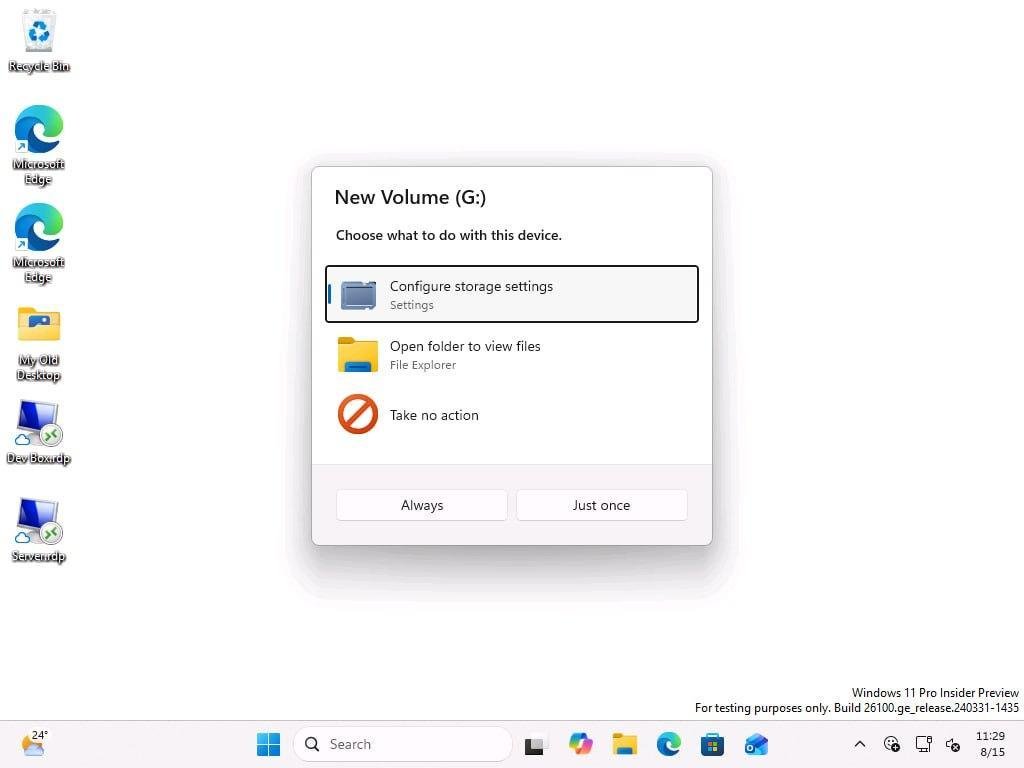
Last week I plugged a card reader into my desk machine to pull 40 RAW files off a camera card, and the familiar dialog appeared dead centre instead of in the top-right corner I have been ignoring since the Windows 8 days. That repositioning is the visible half of the story. The useful half is the two buttons underneath the action list.
What does the new AutoPlay prompt actually change?
Microsoft rebuilt the prompt on the WinUI framework and kept the existing decision logic intact — nothing in the action list disappeared. The changes that affect your day are behavioural, not cosmetic: the window sits centre-screen, follows dark mode, scales better with text size and display scaling, and remembers what you picked.
- Position: centre of the desktop instead of the top-right corner, which makes it harder to miss on large or ultrawide monitors.
- Look: WinUI styling that matches the rest of Windows 11, including dark mode.
- Accessibility: better adaptation to display scaling and text size, which matters on high-DPI laptops and for anyone using larger system text.
- Memory: each action now comes with "Always" or "Just this once", so a decision can stick.
- Notifications: AutoPlay-related notifications stay in the notification centre, so you can deal with them later rather than losing them on dismissal.
History matters here, because it explains why the prompt felt stale. AutoPlay goes back to Windows XP, when the target was optical discs and removable storage; smartphones later pushed it into handling phones and cameras. Microsoft revised it in Windows Vista and again in Windows 8, then left it largely alone for years.
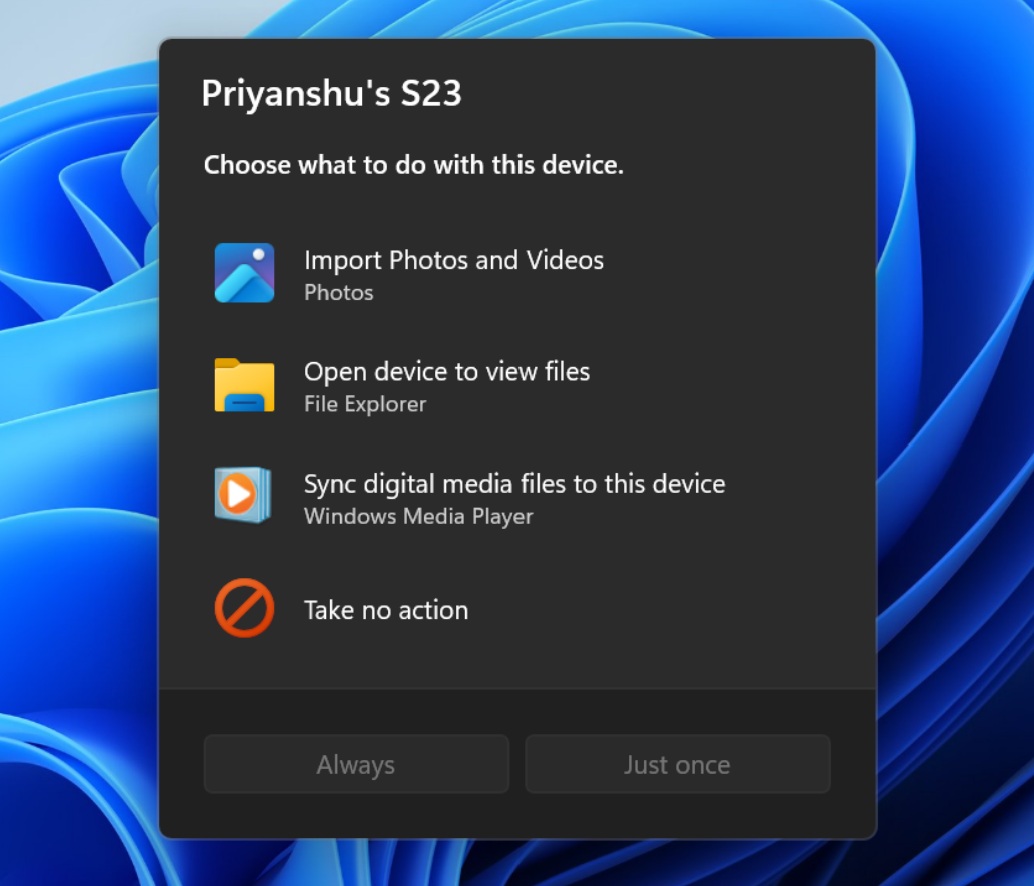
Old prompt versus new prompt: what changes in daily use
The differences that matter are all about how often you have to repeat yourself.
| What you care about | Legacy AutoPlay (Windows 8 era) | New WinUI AutoPlay |
|---|---|---|
| Where it appears | Top-right corner of the desktop | Centre of the screen |
| Visual style | Flat, fixed, light only | WinUI, rounded, dark-mode aware |
| Scaling and text size | Poor fit on high-DPI screens | Adapts to scaling and larger text |
| Remembering a choice | Confirm every time | "Always" or "Just this once" |
| After you dismiss it | Gone | Notification stays in the notification centre |
| Availability | Shipped with Windows 8 | Phased rollout with the November 2026 update |
How do I set it up? A ten-minute checklist
Do this once per machine and the prompt mostly stops interrupting you.
- Confirm the update. Open Settings, then Windows Update, and install the November 2026 security update. If your build ends in 26300.9974 on Windows 11 26H2, or 26200.9974 on 25H2, the package is in place (Windows Latest).
- Open the right pane. Settings, then Bluetooth & devices, then AutoPlay. The older Control Panel path — Hardware and Sound, then AutoPlay — still works and mirrors the same per-media settings on managed machines.
- Decide per media type. Set Removable drive and Memory card separately. This is the control that actually protects you; the dialog is only the last line of defence.
- Leave the master switch on only if you want prompting. Turn off "Use AutoPlay for all media and devices" if you would rather browse devices manually in File Explorer.
- Answer once, deliberately. Plug the device in, choose the action, then pick "Always" if it is your own gear, or "Just this once" if it is a stranger's stick.
- Verify it stuck. Reconnect the same class of device. No prompt means the preference took; the same prompt again means you chose "Just this once".
- For fleets, add policy. The "Turn off AutoPlay" Group Policy setting, under Computer Configuration, Administrative Templates, Windows Components, AutoPlay Policies, overrides whatever the user picks in the UI.
Which default should I pick for each device?
Match the setting to the machine's job rather than to the hardware.
- Your own camera cards and phone: Import photos and videos, with "Always". This is the scenario the memory feature was built for.
- Unknown USB sticks from events or clients: set Removable drive to Take no action, then scan before opening anything.
- Shared, lab or kiosk PCs: switch AutoPlay off through policy. A centred prompt is still a prompt, and the next person at the keyboard will click it.
- Media or home-theatre boxes: Play media with "Always" for the card slot, and Take no action for removable drives.
- Support benches: Browse the device in File Explorer with "Just this once", so every connection leaves a visible trace in the notification centre.
What are the common pitfalls and privacy risks?
Most complaints I have seen come down to misreading what "Always" does, or to mixing up AutoPlay with AutoRun.
- "Always" is per device class, not global. It sticks for the kind of device and action you just chose, following Microsoft's "same type of device" framing. If you want blanket behaviour, change the AutoPlay defaults as well.
- AutoPlay is not AutoRun. AutoPlay offers a menu of actions; AutoRun is the mechanism that could execute content. CISA's guidance is blunt: "By disabling Autorun, you can prevent malicious code on an infected USB drive from opening automatically."
- Waiting for the new look after patching. Features in this release roll out gradually, so a patched machine can legitimately still show the old window.
- Losing the device after turning AutoPlay off. With prompting disabled, open File Explorer and This PC instead of expecting a pop-up.
- Notification residue on shared screens. Persistent AutoPlay notifications are convenient until you hand a demo laptop to someone else; clear the notification centre first.
Security teams put the same point more strongly: disabling AutoRun and AutoPlay outright is described by the MOSSE Institute's hardening guidance as one of the most effective ways to reduce malware spread through removable media. For a workstation that sees other people's drives, that is a better default than a well-designed prompt.
Why don't I see the new prompt yet?
Because the redesign is shipping in stages rather than switching on for everyone at once. Microsoft's November 2026 package, KB5132061, went out on 10 November 2026 as that month's security update, taking Windows 11 26H2 to build 26300.9974 and 25H2 to build 26200.9974. Even so, UI changes in the release are being enabled progressively, and Microsoft's release-health notes track the same servicing timeline.
For IT teams the practical move is to treat it as a configuration change, not a feature announcement: test it in a ring, confirm your AutoPlay policy still wins over user choice, and log which devices staff are allowed to auto-import from. If you already run a monthly gate for developer tooling, use the same gate you used for the Git 2.56.1 security rollout. Teams that want earlier signal can go further and look at Microsoft's Windows Server TAP for structured preview testing.
FAQ: the AutoPlay questions readers keep asking
Is the new AutoPlay prompt a security fix?
No. It is an interface and interaction change. The security-relevant controls are still AutoRun behaviour and the AutoPlay policy settings, both of which you should review separately.
Why did I get the old top-right window after installing KB5132061?
The rollout is phased. Installing the update puts your machine on the servicing train; it does not guarantee that every gradually enabled feature appears on day one.
Can I bring back the old prompt?
I have found no documented switch that restores the legacy design. The supported toggles decide whether AutoPlay runs at all, not which interface it uses.
Does "Always" cover every USB device I plug in?
Treat it as sticky for the device class you just answered for. If you want a stricter house rule, set Removable drive and Memory card defaults to Take no action.
Do AutoPlay notifications pile up now?
They can, because AutoPlay-related notifications remain in the notification centre instead of vanishing. Clear them periodically, especially on shared hardware.
Bottom line: is it worth changing your habits today?
Yes, but the value is in the settings, not the animation. Spend ten minutes setting per-media defaults on every machine you administer, then let "Always" handle your own camera and phone and let Take no action handle everything else. Install the November 2026 update on your normal patch schedule, expect the new window to show up on its own timetable, and do not wait for it before tightening AutoPlay — the prompt was never the control that protected you.
References
- Windows Latest, "Windows 11 KB5132061 is out with new features, direct download links": windowslatest.com
- Microsoft Learn, "Windows 11, version 26H2 known issues and notifications": learn.microsoft.com
- CISA, "Using Caution with USB Drives": cisa.gov
- MOSSE Institute, "Workstation Security: AutoRun and AutoPlay Best Practices": library.mosse-institute.com
- Windows Central, "Microsoft is finally updating one of the oldest dialog boxes in Windows 11": windowscentral.com