
Software Update: Raspberry Pi Desktop for PC and Mac Comes Back on Debian Trixie with 64-bit Support and Raspberry Pi Connect
A desktop image that had slipped behind the release cycle is downloadable again, and every headline change in it lands on the software side of the ledger: the edition has been brought up on top of Debian Trixie, it has moved from 32-bit to 64-bit packaging, and it arrives with the Raspberry Pi Connect client already included. For the MyTechDailyNews Software readership the relevant question is narrow — does giving a PC or Mac a Raspberry Pi makeover now carry enough practical benefit to justify flashing a spare USB stick, and what should an IT support desk verify before it tries?
What follows is the change list, a compatibility read on real hardware, the install path step by step, and the caveats around persistence, device naming and Apple Silicon.
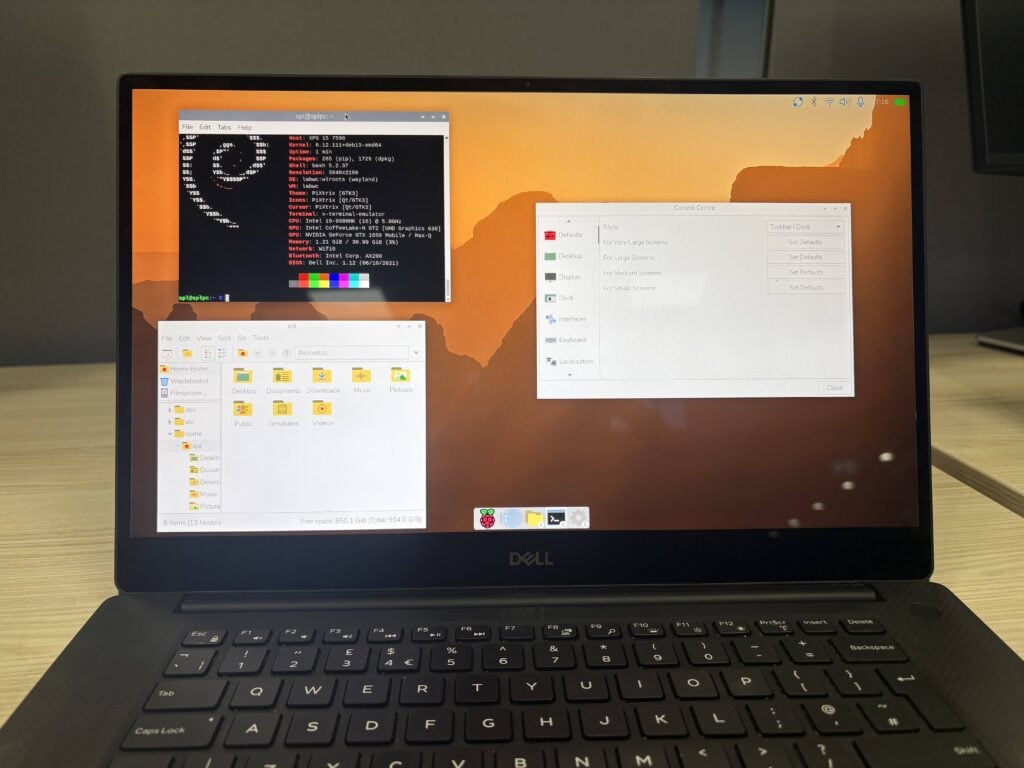 Raspberry Pi Desktop shown installed on a 2020 Dell XPS laptop
The changelog, condensed
- Base image: the refreshed edition sits on a Debian Trixie image, assembled by Serge — the engineer responsible for, among other things, packaging and creating the Raspberry Pi OS images.
- Architecture: 64-bit, the amd64 architecture, replaces the older 32-bit version, because Debian itself has stopped supporting 32-bit for PC architectures.
- Desktop surface: the release carries all the current desktop updates, including the Control Centre and the new dock.
- Remote access: the Raspberry Pi Connect client is bundled, so a PC or Mac running the Desktop can be controlled together with your Raspberry Pi devices running Raspberry Pi Connect.
- Delivery form: it remains a live Debian image. Installing to the machine's own hard drive or SSD is a second step, run through Calamares.
Current build against the last PC and Mac releases
| Aspect | Debian Trixie build (available now) | Earlier PC and Mac builds |
|---|---|---|
| Debian base | Debian Trixie, rebuilt Earlier this year | Buster, then Bullseye; the Bullseye version remained on the website for anyone who wanted it |
| Architecture | 64-bit (amd64) | the older 32-bit version |
| Raspberry Pi Connect client | Included in the image | Not listed among the shipped components |
| Control Centre and new dock | Present, as part of the current desktop updates | Not part of the desktop set described for those releases |
| Update cadence | Ready for download | Newer versions never came because there was no time |
| Hardware shown running it | 2020 Dell XPS, 2014 MacBook Pro, an Apple MacBook Pro reached over Connect | A bootable DVD given away That Christmas, then the first installable version in 2017 |
Compatibility: which machines can actually boot this
| Platform | Can it run the image? | Reasoning in the announcement |
|---|---|---|
| PC made in roughly the last 15 years | Yes, in principle | Most such PCs can happily run the 64-bit version of Debian |
| PC older than that window | Verify before you flash | The 32-bit route is gone, since Debian no longer supports 32-bit on PC architectures |
| Intel-based Mac | Yes | Most Intel-based Macs are covered by the same 64-bit assessment; the 2014 MacBook Pro is pictured running the Desktop from a live image on USB |
| Apple Silicon Mac | Not with this build | Debian support for Apple Silicon is still experimental, so the latest and greatest shiny fruit products cannot run this |
| 2020 Dell XPS | Yes | Used both for the installed desktop and for the Chromium session that controlled an Apple MacBook Pro over Raspberry Pi Connect |
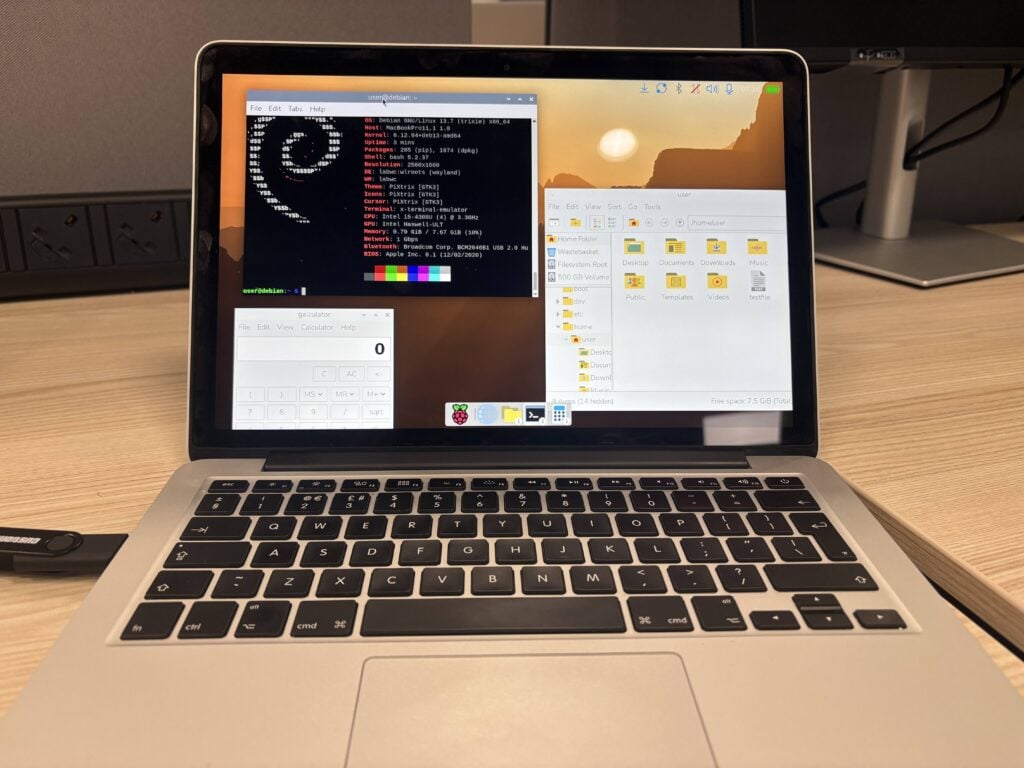 Raspberry Pi Desktop running from a live image on USB on a 2014 MacBook Pro
Step tutorial: test from USB, install only if you keep it
- Write the .iso file to a USB stick, insert the stick into your computer, and start the computer from USB.
- When prompted, choose “run with persistence”; any changes you make will then be saved back to that USB stick.
- The same menu also offers a persistence reset. If you choose this, any changes will be deleted and your USB stick will be back to a clean original image — treat it as a destructive action.
- After Raspberry Pi Desktop has booted, decide whether it should be permanent. The standard Debian installer, Calamares, can be run from either the desktop shortcut or the Install Raspberry Pi OS entry in the System Tools category of the main menu.
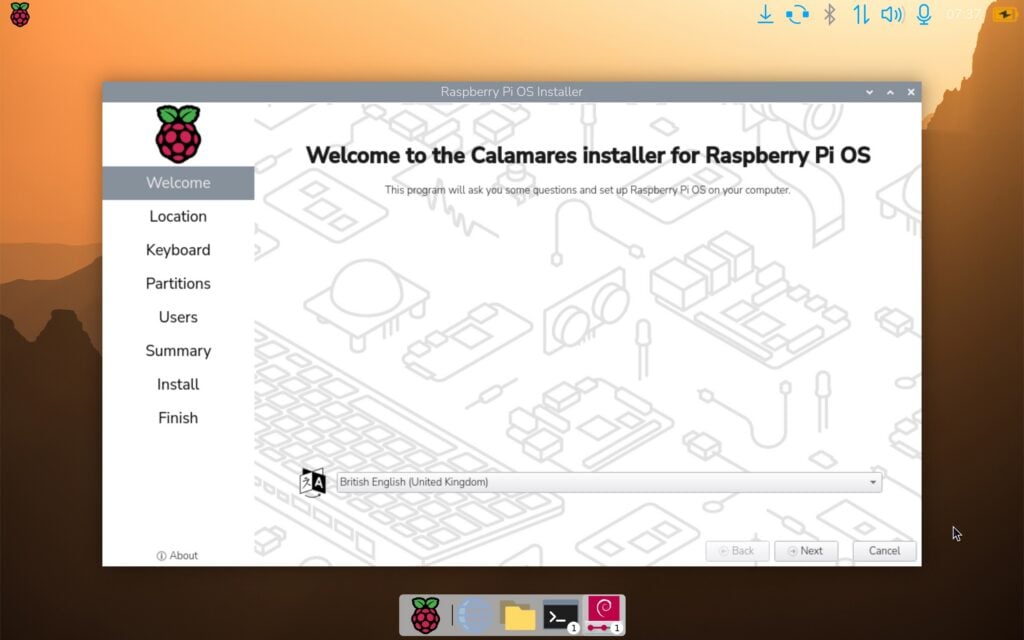 The Calamares installer running on a MacBook.
Raspberry Pi Connect makes the desktop a remote node, with one extra step
The practical payoff for anyone managing more than one machine is the bundled client. Behaviour on a PC or Mac is the same as on a Raspberry Pi, with one difference: when you set up a PC for Connect, you must enter a name to identify that device. That step is unnecessary on a Raspberry Pi, because a unique hardware ID is used instead. The chosen name then appears in the device list you see after logging into the Connect website, and from there you can use screen sharing or a remote terminal on the device.
Read that as a naming decision with operational consequences: the label you type is the only thing separating one enrolled machine from another once several appear in the same list.
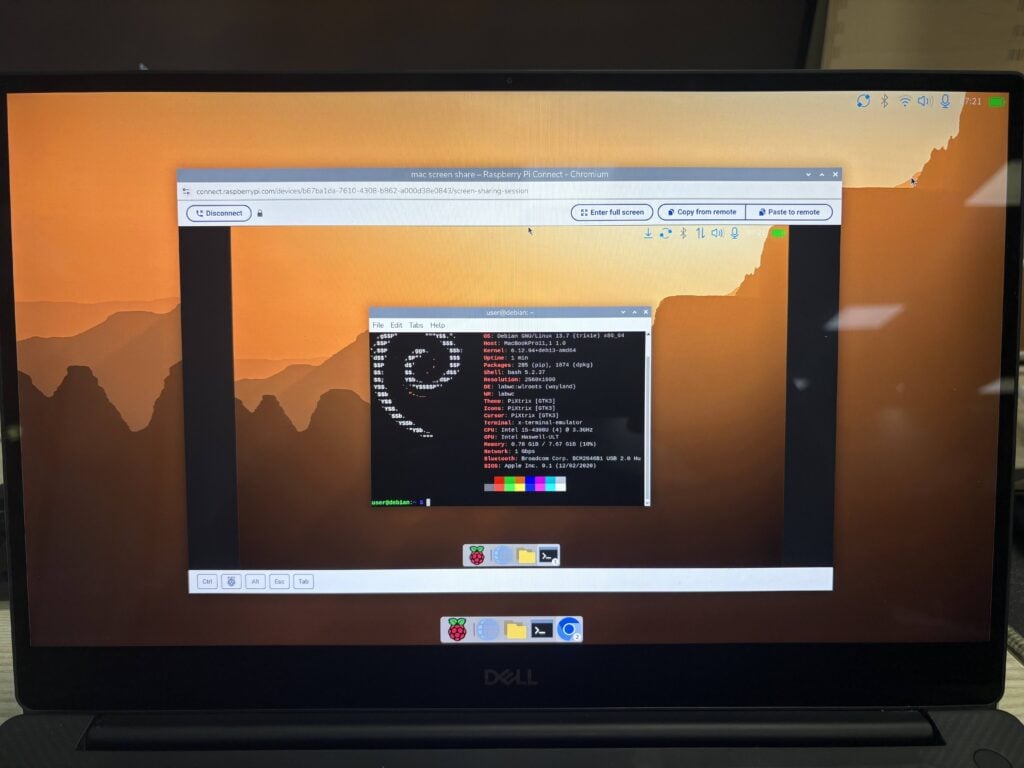 The Chromium browser running on Raspberry Pi Desktop on a Dell XPS being used to control Raspberry Pi Desktop running on an Apple MacBook Pro over Raspberry Pi Connect – how much more meta could we be?
How the project arrived here: 2016 onward
The desktop is older than its PC availability suggests. By 2016 the first round of changes that made the default LXDE desktop feel specific to Raspberry Pi had been completed. The intended name was PIXEL, an acronym for Pi XWindows Environment Lightweight formed a couple of years earlier, but a certain other tech company had already taken that word, so the name could not be used. While those adjustments were under way, CEO Eben Upton passed the desk and asked, “wouldn’t it be cool if I could run this on my Mac…?”
It turned out not to be difficult: a Mac could boot Debian, and within a few hours the Raspberry Pi desktop was running almost fully from a USB stick. On Monday the MacBook was carried over to Eben with the words, “you might want to see this…”. Feasibility was proven, but a weekend hack is not a product, so as a sort of “Skunk Works” project Serge and the team spent part of the following months making it practical. That Christmas, a bootable DVD with the PC and Mac version of the Desktop was given away on the front cover of The MagPi Magazine, which was then the name of Raspberry Pi Official Magazine.
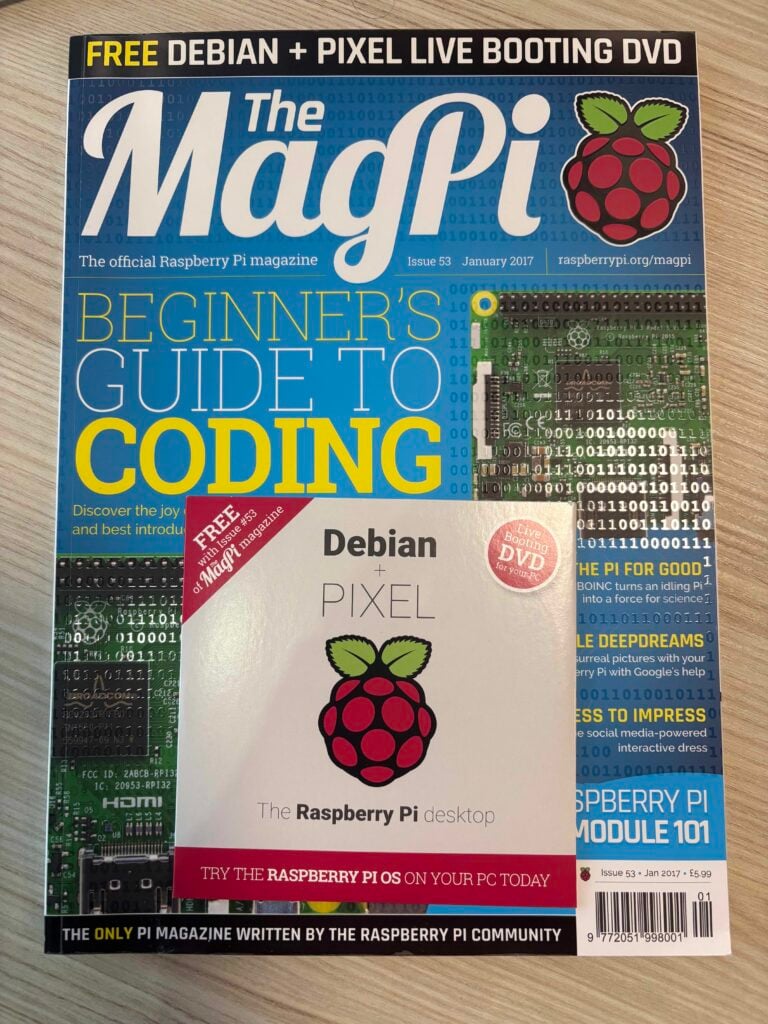 The first ever release of Raspberry Pi Desktop for PC and Mac
The response was far more popular than expected, and in 2017, after a lot more work by Serge, the first installable version of Debian with Raspberry Pi Desktop for PC and Mac was released — which seemed even more popular. It also created the constraint that shaped the years after: the company makes its money from selling Raspberry Pi computers and has never charged for the software that makes them work, so spending engineering time on the PC version was hard to justify. Updates were found for the Buster and Bullseye releases of Debian, then other duties took over.
Data points worth citing in a rollout decision
- Latent demand: two or three emails arrive every week asking when the PC Desktop will be updated — the figure the project itself gives for the stalled period.
- Architecture window: most PCs made in the last 15 years or so can run the 64-bit version of Debian, as can most Intel-based Macs.
- Timeline: 2016 for the LXDE work, That Christmas for the DVD, 2017 for the installable release, then Buster and Bullseye, and Earlier this year for the rebuild on Debian Trixie.
- Reference devices: a 2020 Dell XPS, a 2014 MacBook Pro, and an Apple MacBook Pro reached remotely over Raspberry Pi Connect.
Common misconceptions
- “This is an emulator for the hardware.” It is not. It is a Debian image with the Raspberry Pi desktop on top, intended to give other computers a Raspberry Pi makeover.
- “Any Mac from the last decade will do.” Intel-based Macs are covered; Apple Silicon is not, because Debian support there remains experimental.
- “Persistence means the stick is quietly installing itself.” It writes your changes back to removable media only, and the same menu's persistence reset deletes them and returns the stick to a clean original image.
- “Connect enrolment is automatic on a PC, like on a Pi.” A Raspberry Pi uses a unique hardware ID; a PC must be given a name by the user.
- “The PC edition was dropped because nobody wanted it.” Demand persisted; the missing ingredient was time, and the release note apologises for the wait.
FAQ
Why did the PC and Mac edition stall for so long?
Because the economics of the project point elsewhere. Raspberry Pi computers are what generate revenue, and the software that makes them work has never been charged for, so maintaining the PC version could not be prioritised against the engineering team's existing workload.
Can I still get the Bullseye image?
The Bullseye version remained on the website for anyone who wanted it during the stalled period; the newest work is the Debian Trixie build, brought up Earlier this year.
Does the desktop behave differently from the one on a Raspberry Pi?
Only in device identity. Everything else about the Raspberry Pi Connect behaviour is described as the same as on a Raspberry Pi, apart from the name you must enter when setting up a PC.
Is 64-bit a problem for older hardware?
Mostly not: machines from the last 15 years or so should be fine. The genuine exclusions are very old PCs that cannot run 64-bit Debian, and Apple Silicon Macs.
What happens to my files if I reset persistence?
Any changes you made are deleted, and the USB stick goes back to a clean original image. Export anything you want to keep before using it.
Action advice for software evaluators and support desks
- Confirm 64-bit capability first. The 32-bit path no longer exists, so check the CPU before you schedule testing on legacy PCs.
- Run the live image before touching an internal drive. Boot from USB with “run with persistence” and evaluate the Control Centre and the new dock on the real device.
- Name Connect devices deliberately. The name you enter is what appears in the device list on the Connect website, so use a label that will still mean something during an incident.
- Treat persistence reset as destructive. It restores the original image and deletes saved changes.
- Scope Apple Silicon out of this trial. Experimental Debian support means the image is not a candidate there yet.
- Document the install route. Calamares is reachable from the desktop shortcut and from the Install Raspberry Pi OS entry in System Tools, so note both for staff who cannot see the shortcut.
Bottom line
The interest in this release is not nostalgia for a desktop theme. A live Debian image that carries the current Raspberry Pi desktop and a Raspberry Pi Connect client gives support teams and enthusiasts a way to reach an old Dell XPS or MacBook from the same device list as their Raspberry Pi hardware — with the caveats that the naming step is manual, persistence is removable-media state, and Apple Silicon remains off the table. If you have a spare machine and a spare USB stick, the cost of evaluating it is about twenty minutes; the announcement itself adds an apology for how long the wait was, and the download is now the answer to it.
Written by Sarah Chen for Tech Daily · MyTechDailyNews Software desk · corrections and tips: hello@techdaily.com