
No Drag, No Lock: The Practical Guide to Moving the Taskbar in Windows 11
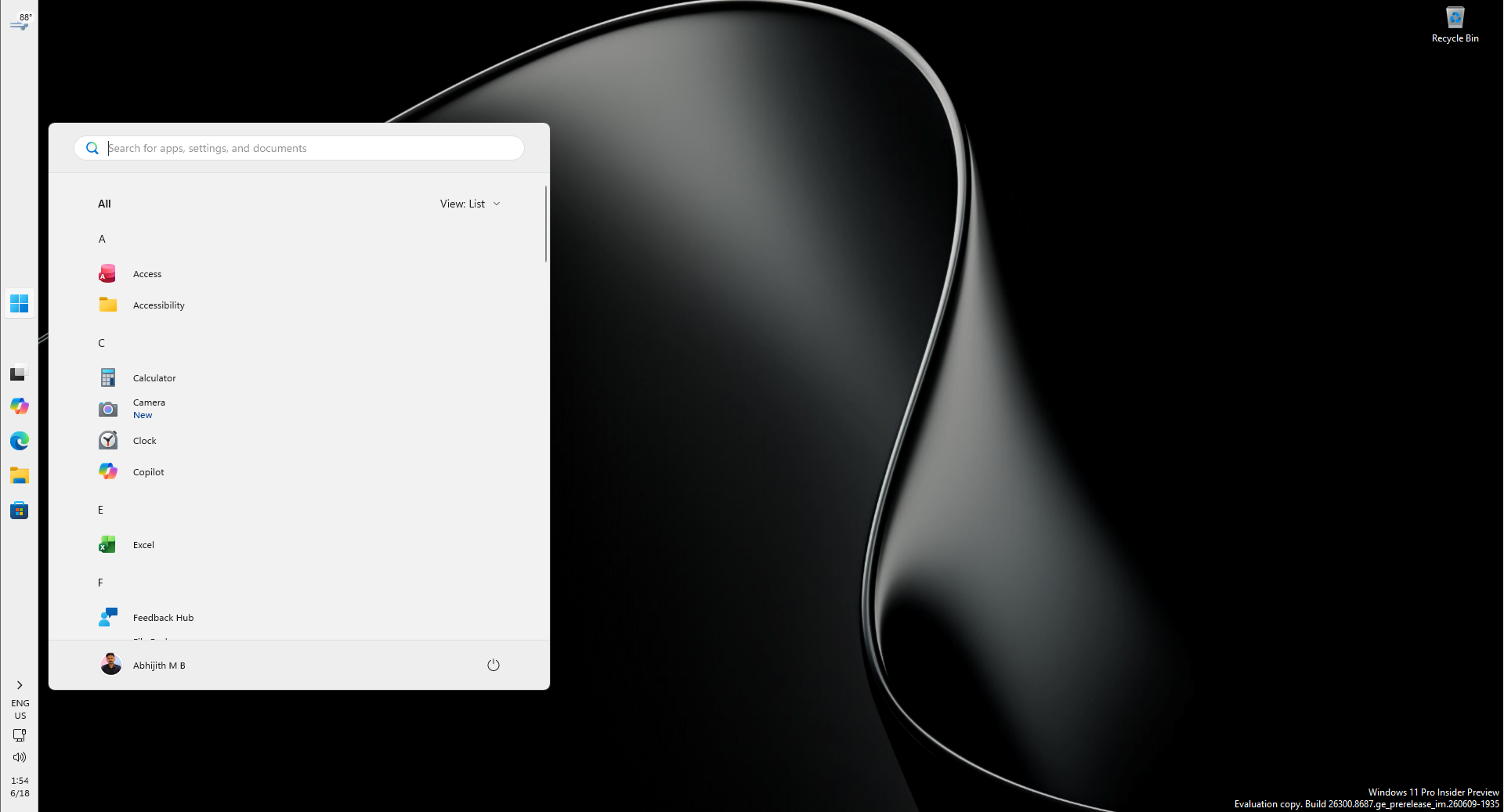
Press and hold the empty strip of your bar at the edge of the screen, pull, and the operating system simply ignores you. Some builds flash a "not allowed" cursor, others do nothing at all. That dead gesture is the single most reported point of confusion for people switching to Microsoft's current desktop, and it is not a malfunction. MyTechDailyNews breaks the issue into three parts below: what the company decided, why it decided it, and exactly which controls you should use instead — plus the traps that send readers into settings pages that no longer exist.
One Gesture Removed, Two Habits Left Behind
Windows 10 treated the bar as a movable object. Users released it through a "lock the taskbar" switch, then grabbed a blank area and slid the whole strip to another edge; the interface redrew itself around the new spot. Windows 11 deleted both halves of that workflow when it first launched: the bar was pinned to the bottom, the lock switch vanished, and the strip could no longer be resized by pulling its upper edge.
The result is a steady stream of tickets that read like hardware complaints. Consumer support documentation published by major PC makers draws the line explicitly: the guidance for this exact symptom calls it a specification change in the operating system rather than a driver, firmware or device fault, and it routes customers to Microsoft's community threads instead of a repair case. If you were about to blame your laptop, stop — the bar is behaving precisely as designed.
What Microsoft Says Behind the Decision
Recently, the company's design leadership went on record about the missing drag. Vice President of Design Diego Baca explained that research showed dragging a bar this prominent invites accidental repositioning — the very risk that made Windows 10 ship a lock option in the first place — and that most people, once they settle on a favourite edge, never move it again. In his framing, a setting that is easy to find and opens with a single right-click produces an intentional, predictable change instead of an accident.
The reasoning also has an engineering side. Windows 11's shell strip was rebuilt from the ground up rather than inherited from Windows 10, and the legacy code that handled drag-to-reposition was removed; recreating it was judged disproportionate to how rarely the gesture was used, according to the company's answer as relayed by the Chinese technology outlet IT Home. For readers, the practical takeaway is that the omission was a trade-off, not an oversight — which is why it survived for years of feedback.
That feedback eventually paid off in one area. This year the option came back, but as a list rather than a gesture: you may now place the bar on four edges of the screen — bottom, top, left or right — through Settings. The drag never returned.
Windows 10 Versus Windows 11: Which Controls Actually Survived
| Control | Windows 10 | Windows 11 | Best substitute today |
|---|---|---|---|
| Slide the bar to another edge with the mouse | Supported after unlocking | Not offered | Taskbar location list in Settings |
| Lock / unlock switch | Right-click menu | Removed — nothing left to lock | Not needed; only Settings changes the position |
| Resize thickness by dragging the edge | Supported | Not offered | Compact bar toggle for smaller panels |
| Drop a file onto a pinned app icon to open it | Supported | Not offered, even when the app is already running | Drop onto the open window itself, or use Open with |
| Align icons centre or left | Left only | Centre by default, left available | Taskbar alignment list in Settings |
Two rows in that table cause most of the confusion, so it is worth naming them separately. "Location" decides which edge the strip sits on; "alignment" decides whether the icons cluster in the middle or hug one corner. They are two different switches on the same page, and changing one does nothing to the other.
Step-by-Step: Repositioning the Bar Without Dragging
Once your machine is on a build that carries the option, the whole operation takes about twenty seconds:
- 1. Right-click any blank area of the strip and pick Taskbar settings, which jumps you straight into the personalization page of Settings (pressing Windows key plus I gets you there manually).
- 2. Expand Taskbar behaviors, find Taskbar location on screen, and choose from bottom, top, left or right — the change applies instantly, no restart required.
- 3. While you are in the same list, decide on the compact bar toggle, which shrinks the strip and pays for itself on laptops and small panels where vertical space is scarce.
Microsoft documented that same route in a May 2026 post on its official Windows Insider blog, describing Settings > Personalization > Taskbar > Taskbar behaviors as the entry point for the new position control and presenting it as part of a broader push to raise the quality of the bar and the Start menu. The company's support library uses the identical path, so if a tutorial sends you somewhere else, that tutorial is out of date.
Why Two Machines on the Same Version Can Behave Differently
Timing explains most "the setting is missing" reports. Coverage by IT Home of independent testing on the September 2026 cumulative update — KB5124008, which lifts 24H2 installations to build 26100.9445 and 25H2 installations to build 26200.9445 — identified that rollup as the release that delivered the movable bar, a resizable Start menu and a cleaner search page to all eligible PCs. Nothing here requires a new edition of the system: Microsoft's release documentation describes these rollups as monthly cumulative security updates delivered on the second Tuesday of each month, and later patches inherit the earlier ones. A machine that skipped two months of patching therefore genuinely has no position control to show you, which is why updating comes first in the checklist below.
Pre-Flight Checklist: Verify These Before You Tweak
- Run Windows Update first and install the latest cumulative quality update, then reboot — the position control arrives with system updates, not as a separate download.
- Confirm you are signed in with an account that can change personalization; a work or school device may restrict it.
- Decide in advance whether you want a new edge or a new icon alignment, because they are separate settings.
- Match the edge to your monitor shape: portrait panels and tall coding windows benefit most from a left or right strip, while wide desktops usually keep the bar at the bottom or top.
- Expect the notification corner to stay anchored, so budget a day of re-learning where the clock and the tray live.
- Do not hunt for a registry value that restores mouse dragging — none exists; registry edits circulating online only change alignment or layout, never the gesture.
- Test the built-in options before installing shell-replacement utilities, which are known to break after a feature update.
Common Misconceptions Worth Dropping
"My touchpad or mouse is failing." The gesture was retired by the operating system, so no input device is involved.
"Dropping a file on an app icon should still work." Community reports on Microsoft's own question-and-answer platform confirm that dragging a document onto a running app's strip icon shows the prohibited cursor on current builds. The reliable fallback is to keep the target window open on the desktop and drop the file onto that window, or right-click the file and use Open with.
"The lock switch is just hidden deeper now." It is gone, because there is no drag left to guard against.
"Moving the strip breaks applications." Position is a system-level layout change; ordinary programs simply follow the new geometry.
"Third-party shell tools are harmless." They replace parts of the Windows shell, so every monthly rollup is a compatibility risk; treat them as temporary, not as permanent infrastructure.
When the Position Option Is Missing: Realistic Causes
Work through the causes in order of likelihood. First, the device is not fully updated — install pending updates and restart twice, because the shell sometimes refreshes only after the second boot. Second, the machine is managed: Microsoft's taskbar configuration documentation for information technology teams describes policy settings and provisioning channels that organisations use to standardise the strip, so an IT profile can legitimately hide or freeze these controls. Third, you are on a slimmed or specialised system image where the personalization surface has been trimmed. In the first case you can fix it yourself; in the second, only your administrator can. If none of the three applies, search Microsoft's Learn question-and-answer archive before paying for support, since the same symptoms are usually answered there already.
FAQ: Quick Answers for Everyday Readers
Can I make the bar draggable again?
No, and the company has signalled it will not reintroduce the control. The supported route is the Settings list, which sits a single right-click away.
Which edges are supported now?
Four: bottom, top, left and right.
Why would a click-only menu beat a drag?
Because a drag is silent and accidental. A list forces a deliberate choice, which is exactly the trade-off the design team described when it explained the decision.
Does the compact toggle change the position?
No. Size and edge are independent switches; you can use any combination of the two.
Will my pinned shortcuts survive the move?
Yes. Repositioning rearranges the layout, not the contents of the strip.
I still prefer the old look. What is the least risky compromise?
Choose the edge you want, switch alignment to left so the start button sits in a corner, and keep the compact bar if your screen is small. That combination restores most of the familiar geometry using supported settings only.
Action Plan for the Next Ten Minutes
- Update the machine and reboot, then open the taskbar page in Settings to confirm the location control exists.
- Pick the edge that matches how you actually use the screen, not the one you remember from an older system.
- Adjust alignment and the compact toggle in the same session, then live with the layout for a full working day before changing it again.
- Replace the broken drop gesture with one habit: keep the destination window open and release files onto it.
- If the device belongs to an organisation, route the request to the account that owns its policy profile instead of editing system files.
The wider lesson for anyone who follows everyday technology news is that interface convenience now gets weighed against accident statistics before it ships, and that a removed gesture can survive years of complaints while the underlying research stays unchanged. What readers get in return is a slower, more deliberate way to make the same change — which, in this case, arrived only after years of feedback and inside an ordinary monthly update. If you hit a control we have not covered yet, or want the next walkthrough of rolling desktop changes, reach the MyTechDailyNews newsroom at hello@techdaily.com. — By Sarah Chen, Tech Daily