
MyTechDailyNews General Guide: Why Windows 11 Task Manager Can Stutter Near 100% CPU
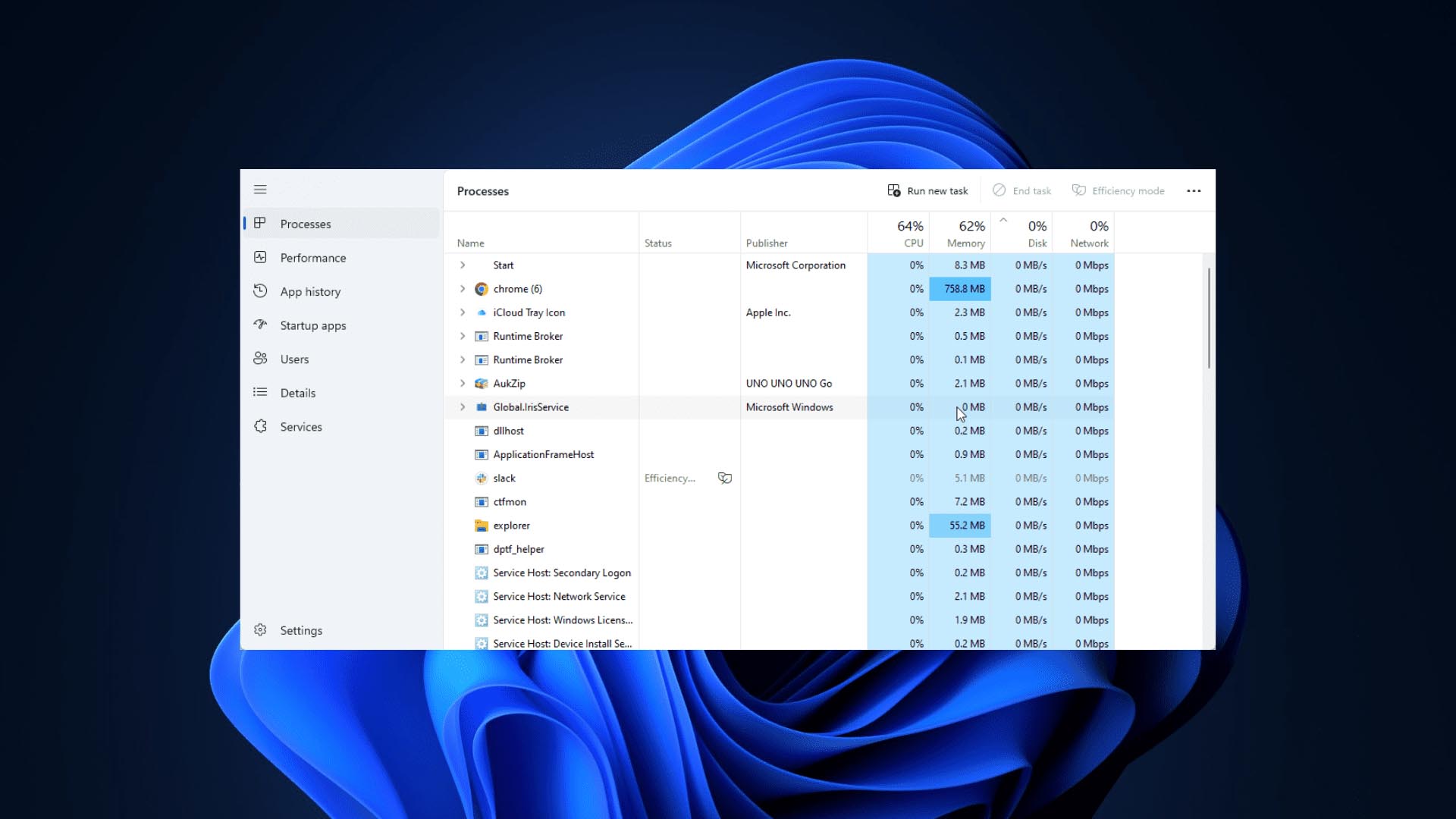
When a Windows 11 PC is pushed close to its performance limit, the tool users expect to help diagnose the problem can become slow too. Recently, Microsoft addressed a recurring complaint about Task Manager: if CPU usage climbs toward 100%, the diagnostic window may refresh more slowly, respond late, or freeze briefly. The point is simple: Task Manager is still a program running inside the system, not a separate observer that can summon extra computing power when resources are scarce.
For many everyday users, this behavior feels counterintuitive. Task Manager is opened to identify which application is consuming resources, so when the interface itself lags, the diagnosis becomes harder. That is why some have questioned whether the design is fair or whether the tool should remain responsive under pressure.
What Microsoft said
A Microsoft employee with a senior background in Windows development explained the situation on social media. Task Manager must receive CPU time from Windows just like other processes. If the processor is already occupied by high-load tasks or higher-priority work, Task Manager must also compete for time. In that state, slower screen updates and delayed clicks are understandable.
The explanation also noted that Microsoft has tried to keep Task Manager’s own overhead low. But it still needs to periodically collect and update many system indicators, such as processor usage, memory occupancy, disk activity, and background process information. During extreme pressure, even these refresh operations can become delayed.
Why this matters for ordinary readers
The issue is not only a technical detail. It affects how users experience system problems. If CPU load is near 100%, slow Task Manager output may not mean the application is broken. It may be a sign that the system is approaching its resource limit.
The community discussion has produced two broad views. Some users suggest that Microsoft could add a lighter emergency diagnostic mode that shows only the most critical resource information when the system is close to becoming unresponsive. Others argue that any monitoring tool depends on system resources, so no solution can be completely unaffected by heavy load.
Common misconceptions
- Task Manager is not an isolated hardware monitor; it is a normal application scheduled by Windows.
- Smoothness does not automatically prove Task Manager is defective; load level matters.
- Third-party performance tools may look smoother in similar situations, but that often reflects update frequency, interface complexity, and implementation method rather than immunity from CPU pressure.
- Microsoft’s explanation does not claim Task Manager can obtain extra computing power when the system is overloaded.
Checklist: How to read the symptom
- Note whether the slowdown appears only when CPU usage is close to 100%.
- Observe the exact symptom: delayed refresh, slow response, or brief freeze.
- Remember that metric updates such as processor, memory, disk, and background process data may slow together under extreme load.
- Compare behavior across tools, but avoid assuming a smoother interface means the tool can bypass system scheduling.
- Treat persistent unresponsiveness at normal load as a separate issue that may need further diagnosis.
Action advice
For daily use, the most practical takeaway is to interpret Task Manager lag as context, not as instant proof of failure. When the system is already near its CPU limit, the diagnostic tool may become less fluid. That is the central point Microsoft conveyed. If the goal is to understand an unusual performance drop, users should first connect the symptom to the CPU load level and then consider whether they are seeing a resource-constrained situation or a malfunction.
FAQ
Is Windows 11 Task Manager broken when it freezes?
Not necessarily. Recently, Microsoft tied such behavior to extreme CPU pressure. When processor usage approaches 100%, Task Manager may lose responsiveness because it must compete for CPU time like other programs.
Can Microsoft make Task Manager always smooth?
The community idea is a lighter emergency diagnostic mode, but the technical constraint remains: monitoring software still runs on system resources. It cannot completely escape the scheduler while the CPU is saturated.
Why do some third-party monitors seem faster?
They may update less frequently, use a simpler interface, or rely on different implementation choices. That does not prove they are unaffected by system load.