
Windows 11 Cloud Rebuild Step by Step: How to Reinstall a PC That Won't Boot Without a USB Stick
By Sarah Chen, Tech Daily — MyTechDailyNews
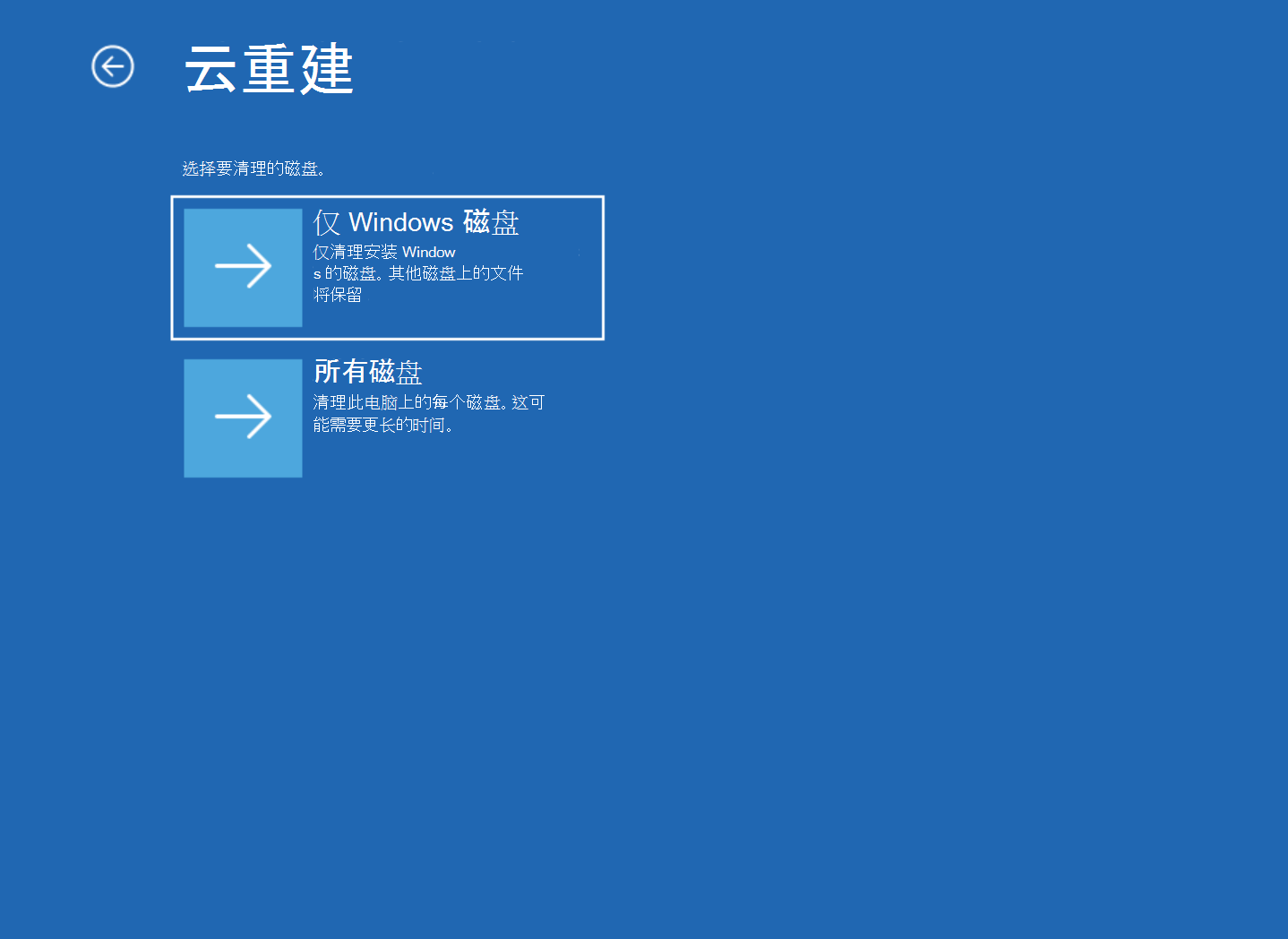

Windows 11 Cloud Rebuild is a recovery option that downloads a fresh Windows image together with the drivers for that specific machine from Windows Update, wipes the system drive, and installs everything from scratch — so a PC that refuses to boot can be brought back with nothing more than an internet connection and a power outlet. No USB stick, no borrowed laptop, no working desktop. What follows is the hands-on version of Microsoft's explanation: what the feature actually does, the six-point pre-flight check, the exact click paths from both a healthy system and a dead one, and the quiet traps that turn a recovery into a permanent data-loss story.
What does Cloud Rebuild change compared with Reset this PC?
Short answer: Reset this PC still works on the Windows installation you already own; Cloud Rebuild refuses to trust it. The existing reset flow in Windows 11 lets users keep personal files and can already pull system files through a cloud download. Cloud Rebuild is a full reinstall: you enter the recovery environment, download the required image and drivers from the cloud, then erase the relevant data and install a clean system. Microsoft's configuration documentation describes the outcome as returning a device to a "clean, known-good state", noting that both the target Windows image and the device's drivers come from Windows Update, so the machine boots again fully functional — without USB media, without a custom image, and without depending on the integrity of the installed operating system.
| Dimension | Reset this PC | Cloud Rebuild |
|---|---|---|
| Personal files | Option to keep them | Full reinstall: local files, apps, accounts and settings on the system drive are cleared |
| Source of system files | Local install, or cloud download of Windows files | Windows image downloaded from Windows Update |
| Drivers | Usually inherited from the existing setup | Device drivers downloaded alongside the image |
| Runs from | Windows or WinRE | WinRE only — the installed system can be completely broken |
| Extra media needed | None, unless recovery is unusable | None; a USB image stays as fallback only |
| Typical trigger | Sluggish install, junk apps, minor corruption | Boot failure, damaged system files, handing the PC over to someone else |
The line that matters most for readers: a reset leans on the copy of Windows already sitting on your disk, while a rebuild leans only on WinRE and on the network.
When is Cloud Rebuild the right tool — and when should you not touch it?
- Your important data is already backed up. Use it to install a clean system and leave behind years of accumulated software leftovers.
- A severe fault stopped the machine from booting. This is the headline scenario: reinstall over the network and get the PC usable again.
- You are selling, recycling or handing the PC over. Cloud Rebuild also offers a drive-erase option, so you can require the storage hardware to sanitize itself during the reinstall and lower the risk of data leakage.
- Skip it when the machine is your only work tool and the data is fragile. Microsoft's documentation marks cloud rebuild as a preview and recommends evaluation on non-production devices; feature behaviour, the interface and command-line options can still change before general availability.
- Skip it when WinRE itself is gone. The process is independent of Windows, but not of the recovery environment; if that partition is corrupted, you are back to USB media.
Before you press Rebuild: a six-item pre-flight checklist
- Confirm the feature is actually on your PC. Cloud Rebuild shipped with KB5127936, the optional update Microsoft published on October 28, 2026 for Windows 11 25H2 and 26H2, and it is being rolled out in stages. A missing option after updating is a rollout issue, not a hardware fault.
- Back up, and check what you backed up. Cloud Rebuild performs a complete reinstall, so files stored locally, installed apps, accounts and settings on the system drive all go away. Anything living in OneDrive or another cloud service is outside the wipe.
- Get the encryption key first. If the device has device encryption or Microsoft BitLocker enabled, the drive is unreadable without the recovery key — before you start, sign in with your Microsoft account and retrieve it from the recovery-key page Microsoft documents at aka.ms/myrecoverykey. Keys are usually stored in the account, but sometimes they are not saved at all.
- Plug in the power cable. The PC restarts several times during download and installation; a battery that dies mid-process is the fastest way to create a genuinely unbootable machine.
- Choose the most stable network path. Ethernet over a cable is the reliable choice; Wi-Fi works but depends on credentials the recovery environment can reuse.
- Keep one USB fallback ready, ideally a WinPE tool such as WePE. A bootable stick is no longer required for the rebuild itself, but it remains the insurance policy when the recovery environment or the network fails, and the only way to copy files off a dying disk.
Step by step: launching the rebuild while the desktop still loads
- Open Windows 11 Settings, then System, then Recovery.
- Select Rebuild this PC and read the summary the system shows.
- Confirm your backup is complete — from this point the existing data on the drive will be erased.
- Choose the erase level; add the storage-sanitize option if the PC is leaving your hands.
- Let the process run through to the Windows out-of-box experience, restarting as many times as it asks.
Step by step: reaching WinRE when Windows 11 will not start
- Try to boot normally. After several failed start attempts, the system drops into the advanced recovery environment automatically.
- If it never gets there on its own, force the machine off with the power button as soon as it starts. Repeat that forced shutdown two times in a row; on the third startup the device enters the advanced recovery environment by itself.
- In that environment, open Troubleshoot — the Cloud Rebuild entry lives in this menu.
- Connect to the network when prompted, then confirm the wipe-and-reinstall summary.
- If a component misbehaves while the PC still boots to Windows, Microsoft's documentation asks users to open the Feedback Hub, file a problem report and pick the cloud rebuild category, so the team can trace it.
Why the network is the step that breaks most often
By default the recovery environment reuses the Wi-Fi credentials it already knows and connects automatically. If the machine will not join your wireless network, plug in an Ethernet cable — this route is steadier, and the download is large enough that a stable link saves an hour of retries. A desktop or notebook without a network port has to stay on Wi-Fi; if wireless also fails, your remaining options are to burn a USB installer from another PC or to add a USB-to-RJ45 network adapter so the rebuild can proceed in place.
What if the files matter more than the machine? Rescue them with WinPE first
Cloud Rebuild is built to reconstruct the system and put the PC back in service — it is not a data-rescue tool. If the machine is already failing to boot and you run the rebuild anyway, your files are erased along with it. That is why the sensible habit is to keep a spare USB drive loaded with a WinPE toolkit such as WePE: in an emergency you can boot into WinPE from it, read the disk and copy the irreplaceable documents out before any recovery option touches the drive. With device encryption or Microsoft BitLocker active, that WePE route only works if the recovery key is in hand; without it the disk content cannot be read at all.
Can IT departments use it remotely? Yes — and that changes the picture for company laptops
Cloud Rebuild is not limited to the person sitting in front of the keyboard. Microsoft's Windows management tooling exposes the capability so administrators can trigger a rebuild on a managed device and choose either the currently installed Windows version or a specific target version, and supported storage can be sanitized before the reinstall. For a fleet, that means a lost, stolen or heavily damaged laptop can be returned to a clean, known-good state without shipping it back to a bench — and, as a consequence, an employee should assume a company device can be rebuilt remotely at any time.
After the reinstall: five finishing steps people skip
- Run the out-of-box experience fully, then let Windows Update finish fetching the drivers and patches the base image does not carry.
- Sign back in with your Microsoft account and re-link the device so settings, licences and cloud files are reachable again.
- Restore personal files from backup, not from the old drive image, and scan the restored documents before opening them.
- Turn device encryption or Microsoft BitLocker back on — and save the new recovery key immediately, so the next emergency does not depend on memory.
- Reinstall applications one by one from official sources, starting with the browser and your security software.
Common misconceptions about Cloud Rebuild
- "It is a repair." It is a full reinstall: files, apps, accounts and settings on the system drive are cleared.
- "It is the same as the cloud download option in Reset this PC." It goes further, because the Windows image and the device's drivers both come from Windows Update, and it runs independently of the installed Windows copy.
- "No USB needed, so no preparation needed." Power, network and an encryption recovery key replace the USB stick as the three things that must be ready.
- "It works on any broken PC." It needs a functioning WinRE, a supported Windows 11 build with the KB5127936 update applied, and an internet path the recovery environment can use.
- "It is finished, shipping software." Microsoft's documentation still labels it a preview, with the explicit recommendation to evaluate it on non-production devices.
FAQ: what readers ask before trying Cloud Rebuild
Do I still need to make a bootable USB drive?
No, that is the point of the feature: the image and the drivers arrive from Windows Update through WinRE. Keep a USB toolkit such as WePE anyway, because it is the only route left when the recovery environment or the network connection fails.
Will Cloud Rebuild keep my documents?
No. It executes a complete reinstall and clears locally stored files, installed applications, accounts and settings on the system drive. If you need the data, copy it out first — from WinPE if Windows no longer starts.
The option is missing from Settings. What now?
Check that you are on Windows 11 25H2 or 26H2 with the October 28, 2026 update KB5127936 installed, then wait: the rollout is gradual, so the entry may not appear on every supported system right away.
Can I use it on a laptop with no Ethernet port?
Yes, Wi-Fi is supported and the recovery environment can reuse saved credentials. If it cannot connect, an external USB-to-RJ45 adapter is the practical workaround, with a USB installer as the last resort.
Is the erased data recoverable afterwards?
Ordinary reinstallation leaves storage that may still be readable with specialist tools. Choose the drive-erase option when the machine is being sold, recycled or handed over, and remember that its effect depends on what the storage hardware supports.
Bottom line
For everyday readers, this is the real news: the entry ticket to reinstalling Windows has changed from "own a USB drive and know how to burn it" to "own a network cable and a backup". That makes recovery dramatically more accessible, and dramatically more final — a rebuild you cannot start is a rebuild you can stop, but one that runs takes the drive with it. Back up, retrieve the encryption key, plug in, prefer wired internet, and keep a WinPE stick in the drawer for the files you cannot afford to lose.
Sources
- Microsoft Learn — Cloud rebuild (Preview): learn.microsoft.com/en-us/windows/configuration/cloud-rebuild
- Microsoft Support — Cloud rebuild in Windows: support.microsoft.com/en-us/windows/experience/backup-recovery/cloud-rebuild
- Microsoft Support — October 28, 2026, KB5127936 for Windows 11 25H2 and 26H2: support.microsoft.com/en-us/servicing/os/windows-11/2026/10/kb5127936-windows-11-25h2-26h2-update
- Microsoft Support — Find your BitLocker recovery key (aka.ms/myrecoverykey): support.microsoft.com/en-us/windows/security/encryption/find-your-bitlocker-recovery-key
- Microsoft Support — Windows Recovery Environment behaviour after repeated boot failures: support.microsoft.com/en-us/windows/experience/backup-recovery/windows-recovery-environment