
MyTechDailyNews Tech Guide: Using Google Maps on iPhone Duo After the 26.44.4 Full-Screen Update
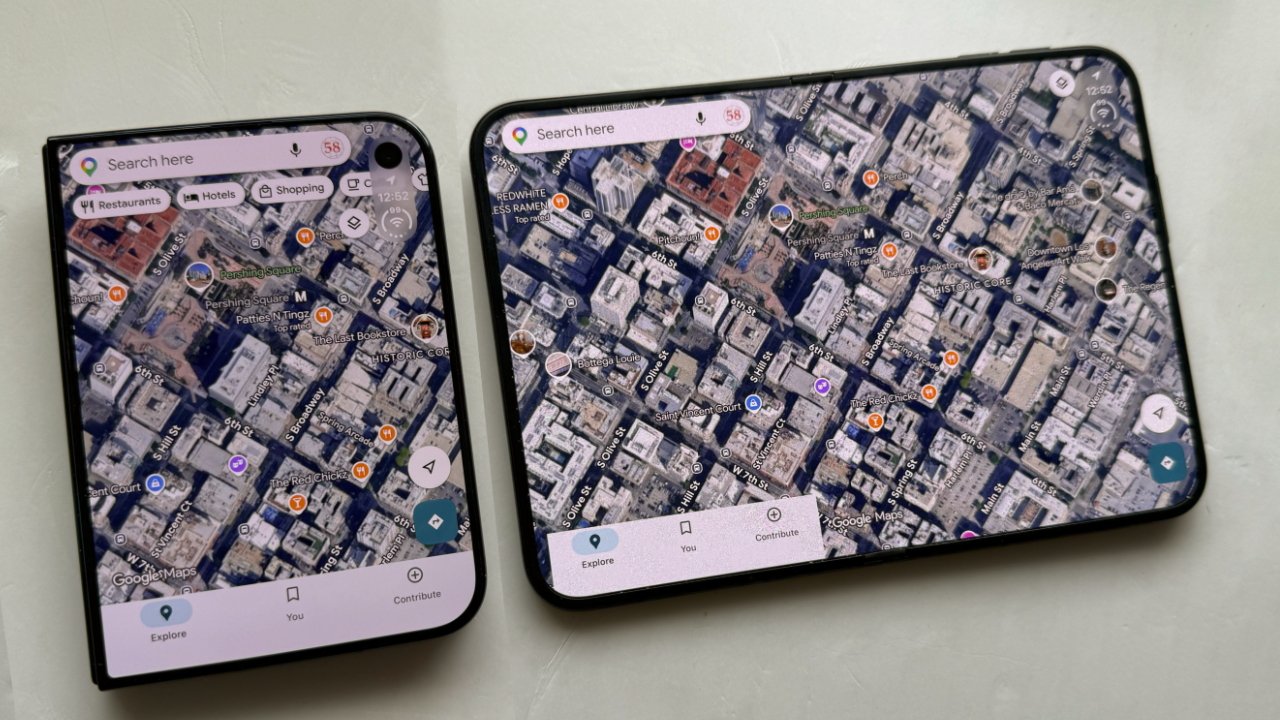
After updating Google Maps for iPhone to version 26.44.4, iPhone Duo users get a more complete map experience across the device’s two displays. The change removes leftover blank areas, fills the inner screen with map content, and improves the outer view, even though the App Store note still says “Bug fixes.”
What does the Google Maps update actually fix on iPhone Duo?
The fix is not a new navigation mode. It is a display-adaptation update for Apple’s foldable phone. iPhone Duo reached Apple Store shelves on Friday, October 23, 2026, according to Apple’s own newsroom. Because that is a short window, many iOS apps are still catching up with the hardware, and Google Maps recently joined the group of mainstream apps that now use both inner and outer screens.
Before the change, the outer screen showed a slightly left-leaning Google Maps layout because the newer iOS bottom Dock needed visual room. When the device was opened, the app still presented what felt like a conventional iPhone interface: the window could be moved left or right, but large parts of the wider canvas stayed empty.
How do the two screens behave after the update?
Google Maps for iPhone now stretches to the edges on both screens. The visual gain is modest on the outer display but more noticeable in tidiness: panels align better, and the map no longer feels cropped or offset.
The bigger improvement is the unfolded inner screen. Google Maps places menus and search functions along one side, while the map, satellite view, or street imagery fills the rest of the canvas from edge to edge. The result feels closer to the iPad version of Google Maps, though the app remains an iPhone app rather than a true iPad app.
Street View is another place where the extra width becomes useful. In the updated behavior, the street imagery is placed on the left half of the unfolded display while the right side keeps a fuller map view. That makes it easier to understand where a photographed corner sits within the wider route or area.
There are still quirks. The current version does not let users swap Street View and the map left-to-right, and it does not allow Street View to expand across the full inner screen the way Apple Maps’ Look Around feature can. When Street View is active and the device is closed, the street imagery moves to the external display; to return to normal map mode, users tap the close control.
A practical checklist for daily use
For MyTechDailyNews readers who want the smoothest setup, follow this sequence:
- Open the App Store and make sure Google Maps for iPhone is updated to version 26.44.4.
- Launch Google Maps while the iPhone Duo is open, then search a destination before folding the device.
- Use the left-side controls for search, layers, and menus, and keep the map canvas as large as possible.
- When exploring a precise location, open Street View to compare the photo view and map together.
- If the map feels odd after switching screens, close and reopen the app once to reset the layout.
For driving, the update makes it easier to keep the larger inner screen readable, but users should still prioritize safety: do not configure Street View or drag controls while the vehicle is moving. A simple rule is to set the destination before driving, then use the display only to glance at route context.
What changed before and after?
| Viewing mode | Before adaptation | After Google Maps 26.44.4 |
|---|---|---|
| Outer screen | Layout leaned left to leave room for the iOS Dock | More orderly full-screen layout |
| Inner screen | iPhone-style window with unused empty regions | Menus on one side, map extended to edges |
| Street View | Less natural split between photo and map context | Street View and map can appear side by side |
| Overall feel | Functional but not optimized | Closer to iPad-style map browsing |
Why the App Store note still says only “Bug fixes”
One confusing part for ordinary readers is the release note. The App Store description for the update remains minimal and says only “Bug fixes.” That wording has led many users to assume nothing meaningful changed. MacRumors coverage of the same update points to the same mismatch: Google rarely uses store text to explain interface changes, so users discover them through testing.
For a General tech audience, this is a common pattern: a meaningful product adjustment can arrive silently when the company treats UI adaptation as maintenance rather than a headline feature.
What still frustrates users?
Here are the pitfalls to know before relying on Google Maps for a road trip or city walk:
- Full-screen Street View is not available yet. It occupies part of the inner display rather than expanding across the entire canvas.
- Street View and map placement cannot be flipped. If you prefer photos on the right, there is no current option.
- Coverage of foldable-friendly apps remains uneven. Many iOS apps have not been adjusted for iPhone Duo’s two screens, even as developers such as the Google Maps team keep releasing updates.
- The inner display can tempt unsafe multitasking. More visible information does not mean more attention should be given during navigation.
Why this matters for the iPhone Duo app ecosystem
Google Maps is only one example, but it is a useful signal. A mainstream app using more screen area improves confidence for owners who chose the device for its larger view. Apple’s product messaging also emphasizes the value of a bigger, foldable canvas. In Apple’s Hong Kong newsroom, CEO John Ternus described iPhone Duo as the most disruptive iPhone innovation since the first iPhone, highlighting multitasking, content viewing, and gaming as core uses.
That broader framing makes the Google Maps update more than cosmetic. The device can show detail and context at the same time: a close-up map, a street view, search tools, and nearby information no longer have to crowd one narrow panel. Other navigation apps are exploring the same idea. For example, public reporting from IT Home says Amap plans a split-screen driving layout on iPhone Duo that pairs lane-level guidance with a wider map view. Google Maps currently benefits from a similar two-context approach, though its Street View split is not the same as driving-specific navigation.
If more popular apps follow Google Maps and use both screens properly, foldable iPhone users may move from novelty mode to practical mode: one device for quick glanceable maps, then a larger screen for planning, comparing, and reading.
Common misconceptions
“A full-screen map means Google Maps is now an iPad app.”
It means the iPhone app has adapted its interface for the inner display. It does not change the app’s identity or make it a separate product.
“Because the App Store note says bug fixes, nothing changed.”
Release notes can be sparse. In this case, users still notice a wider layout and more complete use of the device’s screens.
“Street View works exactly like Look Around.”
Both provide immersive imagery, but Apple Maps’ Look Around allows a broader full-screen style on iPhone Duo, while Google Maps Street View still splits the inner display and cannot be maximized.
FAQ
Which Google Maps version adds iPhone Duo full-screen support?
Google Maps for iPhone version 26.44.4.
Does the update improve both the inner and outer screen?
Yes. The outer screen becomes neater and fuller; the inner screen gains the larger edge-to-edge map canvas.
Can I swap the Street View panel and the map panel?
No. The current behavior keeps Street View on one side and the map on the other.
What happens to Street View when I close iPhone Duo?
The Street View display moves to the external screen so the view can continue without the unfolded canvas.
Where can I get Google Maps?
The app is available as a free download through the App Store.
Action advice
For readers who use Google Maps often on iPhone Duo, the practical takeaway is simple: update now, test one familiar route on the inner screen, and use Street View only when you can give it full attention. Keep the app open as a planning tool before a trip, and expect future updates to refine what can be shown in each half of the display.
References
- Apple Newsroom: iPhone Duo arrives at Apple Store locations worldwide
- MacRumors: Google Maps Updated to Fully Support iPhone Duo Displays
- AppleInsider: Google Maps on both iPhone Duo displays after upgrade
- Apple Newsroom Hong Kong: Introducing iPhone Duo
- IT Home: Amap announces iPhone Duo split-screen navigation plans